
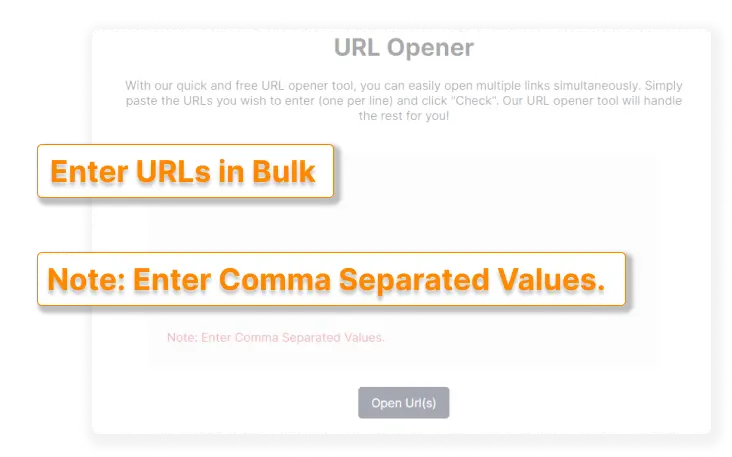
Url Opener tools are designed to simplify the process of opening multiple web links at once, saving time and effort for users who frequently work with large sets of URLs. Instead of opening each link individually, a Url Opener allows you to paste or upload multiple URLs and open them simultaneously in separate browser tabs or windows.
In today’s fast-paced digital workflows, URL Opener tools are widely used by SEO professionals, digital marketers, researchers, developers, and content managers. However, a common and important question arises: Is there a limit to how many URLs a Url Opener can open at one time? Understanding these limits is crucial for efficiency, browser stability, and system performance.
Understanding How a Url Opener Works
A Url Opener functions by sending multiple URL requests to your web browser at the same time. Each URL is opened as a new tab or window, depending on browser settings. While this sounds straightforward, several technical components work together behind the scenes.
When you click the “Open URLs” button, the tool passes each link to the browser’s tab-handling mechanism. The browser then allocates memory, processing power, and network resources to load each page. Because of this, the number of URLs that can be opened at once is not determined by the tool alone.
Is There a Fixed Limit in a Url Opener?
No Universal Fixed Limit
There is no universal fixed limit that applies to all Url Opener tools. The maximum number of URLs you can open at one time depends on several factors, including:
- The specific Url Opener tool or script
- Browser restrictions
- System hardware capabilities
- Operating system limitations
- Network speed and bandwidth
Some tools may allow you to open as few as 10 URLs at once, while others may support hundreds or even thousands, provided your system and browser can handle the load.
Browser-Imposed Limits on Opening URLs
Browser Tab Management Restrictions
Most modern browsers impose practical limits on how many tabs can be opened at once to prevent crashes and memory overload. These limits are not always documented but exist to maintain browser stability.
For example:
- Browsers may temporarily block mass tab opening to prevent spam or malicious behavior.
- Popup blockers can restrict the number of new tabs opened simultaneously.
- Security settings may require user interaction to allow bulk opening.
Even if a Url Opener attempts to open 500 URLs, the browser may only open a portion of them or prompt you for permission.
System Hardware Limitations
RAM and CPU Constraints
Your system’s hardware plays a critical role in determining how many URLs can be opened at one time. Each opened tab consumes memory and CPU resources.
- Low-RAM systems may struggle with more than 20–30 tabs.
- High-performance systems with ample RAM can handle hundreds of tabs more smoothly.
- CPU-intensive websites increase load exponentially when opened in bulk.
If your system runs out of memory, the browser may freeze, crash, or fail to open all URLs.
Operating System Considerations
Different operating systems manage processes differently. The way your OS handles memory allocation and multitasking affects how many browser tabs can be opened simultaneously.
- Some operating systems aggressively limit background processes.
- Others allow more flexibility but may slow down overall performance.
- Virtual memory settings can temporarily extend limits but reduce speed.
Thus, even with the same Url Opener tool and browser, results may vary across systems.
Url Opener Tool-Specific Limits
Built-In URL Caps
Some Url Opener tools intentionally limit the number of URLs you can open in one batch. This is often done to:
- Prevent abuse
- Ensure smoother user experience
- Avoid browser crashes
- Maintain server-side performance
For example, a tool may cap URL opening at 50 or 100 links per batch. Advanced or premium tools may allow higher limits or configurable settings.
Web-Based vs Offline Url Opener Tools
Web-Based Url Openers
Web-based tools rely on browser scripts and security policies. These tools are more likely to face browser-imposed limits and popup restrictions.
Common constraints include:
- Maximum allowed script executions
- Timeouts during bulk operations
- Security warnings from the browser
Offline or Local Url Openers
Offline or desktop-based Url Opener tools often have higher limits because they interact directly with the system and browser APIs. However, they are still constrained by hardware and browser behavior.
Network and Internet Bandwidth Impact
Opening a large number of URLs simultaneously puts significant strain on your internet connection.
- Slow connections may cause pages to time out.
- High-latency networks delay page loading.
- Concurrent requests can overload routers or modems.
Even if a Url Opener technically opens all links, many pages may fail to load properly due to bandwidth saturation.
Browser Security and Anti-Spam Measures
Modern browsers are designed to protect users from malicious behavior. Opening hundreds of URLs at once can resemble spam or automated attacks.
As a result:
- Browsers may block mass-opening attempts.
- Confirmation dialogs may appear.
- Future attempts may be restricted automatically.
These safeguards directly affect how many URLs a Url Opener can open in a single action.
Practical Limits vs Theoretical Limits
Theoretical Capability
In theory, a Url Opener could process thousands of URLs if there were no browser or system constraints.
Practical Reality
In practice, opening more than 50–100 URLs at once often leads to:
- Browser slowdown
- System unresponsiveness
- Incomplete loading of pages
For most users, opening URLs in smaller batches yields better results.
Best Practices for Opening Large Numbers of URLs
Use Batches Instead of Bulk
Instead of opening 200 URLs at once, divide them into batches of 20–30. This reduces strain on the browser and system.
Disable Auto-Loading Features
Some browsers allow tabs to open without loading immediately. This conserves resources and improves stability.
Close Unnecessary Applications
Freeing up RAM and CPU power allows your system to handle more browser tabs effectively.
Professional Use Cases and Their Limits
SEO and Digital Marketing
SEO professionals often use Url Opener tools to audit backlinks or competitor pages. Opening 30–50 URLs at once is usually optimal.
Research and Academia
Researchers may need to review dozens of sources. Batch opening helps maintain system stability.
Development and Testing
Developers testing multiple endpoints or pages benefit from controlled URL opening to avoid browser crashes.
Each use case has its own practical limits based on workflow and tools.
Can Limits Be Increased?
Adjusting Browser Settings
Some browsers allow you to modify popup and tab-opening permissions, which may increase the number of URLs opened.
Using Extensions or Scripts
Advanced users may use browser extensions or scripts to manage bulk tabs more efficiently. However, these still rely on system and browser constraints.
Hardware Upgrades
Upgrading RAM, using SSDs, and faster CPUs can significantly improve your ability to open more URLs simultaneously.
Risks of Opening Too Many URLs at Once
Opening excessive URLs can lead to:
- Browser crashes
- Loss of unsaved work
- System overheating
- Network instability
These risks highlight why most Url Opener tools avoid unlimited bulk opening.
Choosing the Right Url Opener Tool
When selecting a Url Opener, consider:
- Maximum URL limit per batch
- Browser compatibility
- Performance optimization features
- User control over tab behavior
A well-designed tool balances flexibility with system safety.
Conclusion
Url Opener tools do not have a single, universal limit on how many URLs they can open at one time. Instead, the limit is shaped by browser restrictions, system hardware, operating system behavior, network capacity, and tool-specific constraints. While some URL openers may allow hundreds of URLs to be processed, practical performance considerations often make smaller batches more effective. By understanding these limits and following best practices, users can maximize efficiency while maintaining system stability and browser reliability.